Real-time queries for your network#
| Short Description | The EDA Query Language (EQL) enables real-time querying across the entire fleet of the managed nodes and EDB data. |
| Difficulty | Beginner |
| Topology Nodes | leaf11, leaf12, leaf13, spine11, spine12 |
| Tools used | EDA UI |
Imagine this: it’s 3:00 AM, and you’re in the middle of a migration window, moving VMs from one server cluster to another. These servers are connected to multiple leaf switches via a Layer 2 EVPN service.
Based on your experience, you know that a good way to monitor the migration’s progress is by tracking the total number of MAC addresses learned in the service, and closely watching a few specific MACs to see how they shift between switches.
Typically you would do this by connecting to every switch and running show commands, or by having a script that fetches the show commands and parses the output. With EDA Queries, though, you can do it centrally, in a fast, performant and always accurate way.
The EDA Query Language (EQL) allows real-time access to any YANG path on any managed elements network-wide, or any resource published in the EDA in-memory Database (EDB). It delivers instant, streaming results ideal for troubleshooting and observability and can feed data to the EDA visualization dashboards1 or be streamed out to external consumers.
1. Objective#
The goal of this exercise is to learn how the powerful query infrastructure that EDA provides to its users can be used to solve real-world troubleshooting challenges. You will learn the EDA Query Language syntax and get to know the EQL concepts such as Tables, Selectors or Filters.
By completing a series of tasks, you’ll gain a solid understanding of how EQL can be used in your operations and replace the dated and error-prone manual show commands with a fast, accurate and always up-to-date way to surface the data from your network.
2. Technology Explanation#
2.1 Queries page#
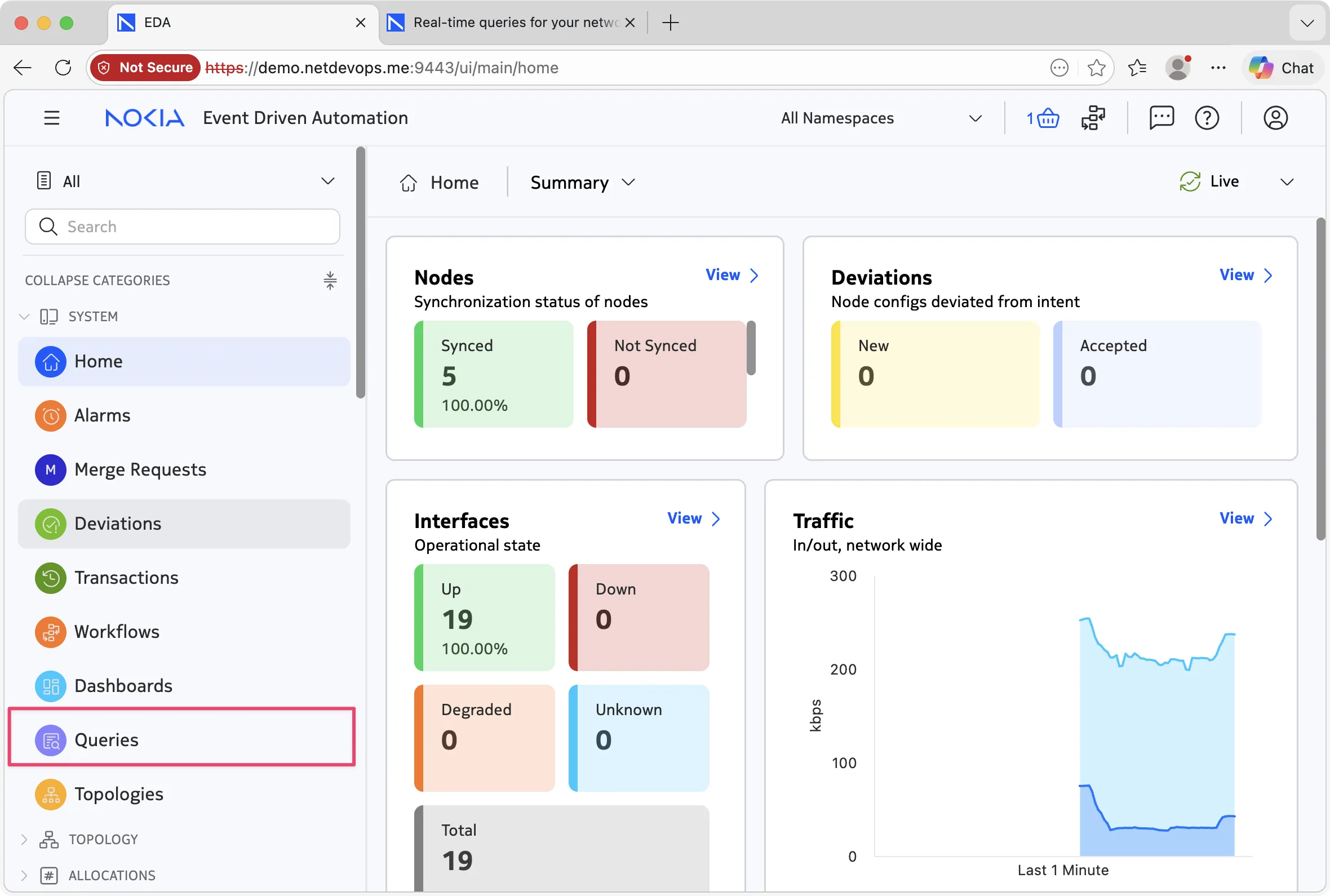
The easiest way to run queries is right from the UI. In the System section select Queries. You can also use the REST API or edactl command if you prefer the comfort of the command line.
The Queries UI consists of a query language selector and the query input fields. The query language selector lets you switch between Natural Language and the EQL query language.
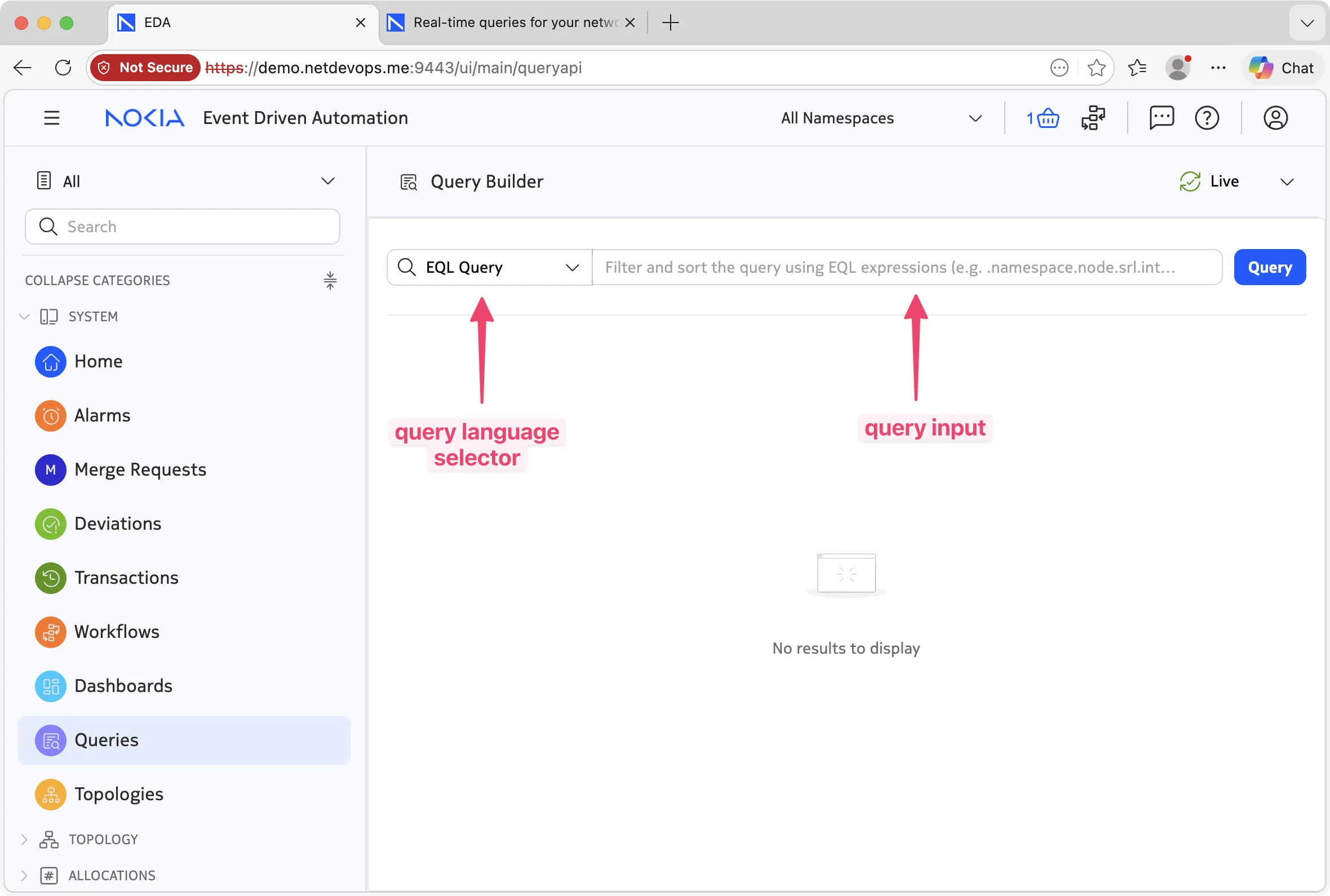
You can create queries in several ways:
- Using natural language: by selecting "Natural language" as the query language, you can convert questions like "How many BGP peers do I have in my fabric" into a structured query.
- Using Ask EDA: the powerful cousin of the natural query language is Ask EDA - the AI assistant.
- The manual way: structured queries return the same results every time, and provide support for operands, filters, and selectors. While the previous two methods are very powerful for creating a baseline query, manual adjustments and execution are the best way to guarantee repeatable results.
Before we dive into the tasks, let's learn more about the EQL syntax and how to build the queries.
2.2 What Makes Up a Query?#
A query in EQL is composed of several optional components, with only the first one being required:
-
Table(required): the data source you're querying. -
Selector(fieldskeyword): specifies which fields to return, optionally applying functions to them. -
Filter(wherekeyword): defines conditions for filtering results, using expressions within parentheses. -
Sort(order bykeyword): determines how the data should be ordered before being returned. -
Limit(limitkeyword): restricts the number of returned results. -
Frequency(deltaorsamplekeywords): controls how often updates are returned, establishing a limit in the frequency of updates.# delta limits the maximum update frequency for the query result to the specified interval .namespace.node.srl.interface.statistics fields [ in-packets ] where (in-octets is set) delta milliseconds 5000 # sample returns one result every interval .namespace.node.srl.interface.statistics fields [ in-packets ] where (in-octets is set) sample milliseconds 5000
If you fancy a deeper dive into the query components, continue reading; else, jump straight to the tasks.
2.2.1 Table#
A Table is defined using JSPath notation. Table boundaries occur at each list or container element within a target node schema, or within containers/lists exposed by EDA applications.
In simpler terms, each node in the JSPath hierarchy represents a distinct table. For example:
-
.namespace.nodeis a table -
.namespace.node.srlis another table -
.namespace.node.srl.interfaceis yet another table
To specify a table, you use a complete JSPath expression without including keys.
Example
.namespace.node.srl.interface.subinterface refers to the subinterface table.
2.2.2 Selector · fields#
A Selector is specified using the fields keyword. It defines an array of fields to be returned from the table and may include functions applied to those fields. All selected fields must exist in the table being queried, otherwise the query will fail.
Only the fields explicitly listed will be returned. If no fields are specified, all fields from the table are returned by default.
The fields keyword must come before any where or order by clauses.
Example
You can also use functions within the fields array for evaluation and aggregation:
average()— Returns the average value of a field over time.count()— Returns the number of unique matches for a given filter.sum()— Calculates the sum of values for a specific field.
These functions are useful for generating insights or summaries within your query results.
2.2.3 Filter · where#
A Filter defines criteria for narrowing down query results and is specified using the where keyword. The following rules apply:
- A filter is composed of an ordered sequence of fields, operators, values, and keywords.
- Keywords like
andandorare case-insensitive—bothANDandandare valid.
Supported Operators:
- Comparison:
=,!=,<=,>=,>,< - Logical:
and,or, and parentheses()for grouping - Regular expression:
~ -
Membership:
in: checks if a field's value is in a list of valuesnot in: checks if a field's value is not in a list
Field names are written without quotes, while values are quoted if they are strings and left unquoted if they are integers.
As you can see from the previous example, filters can combine multiple conditions using parentheses and logical operators.
Warning
Even a single condition must be enclosed in parentheses: .namespace.node.srl.interface where (oper-state = "up")
2.2.4 Sort · order by#
The sort operator determines the order in which results are returned. It is specified using the order by keyword.
You can include one order by clause per query. Its value is an array of fields, sorting directions, and (optionally) sorting algorithms, evaluated in the order provided.
The second element specifies the sort direction: ascending or descending.
The third element is optional and currently supports only natural as a sorting algorithm.
2.2.5 Limit · limit#
The limit keyword restricts the number of results returned by a query. It is applied after all other operations.
limit takes a single integer value. When combined with order by, it allows you to retrieve the top N or bottom N results, depending on the sort direction.
The valid range for limit is 1 to 1000. Values outside this range will result in an error.
2.2.6 Frequency · delta/sample#
The delta keyword controls how frequently query results are sent to the client. It takes two arguments: a unit (milliseconds) and a value representing the limit of the response rate.
- If there are multiple updates within one interval, EDA will only send one - aggregated - update to the client
- If there are no updates within one interval, EDA will not send updates to the client
Example
This means the client will receive updates no more than once per 10 milliseconds. Use delta to avoid overloading the client with rapid updates and to fine-tune the refresh rate for your use case.
The sample keyword works similarly, but sends exactly one update to the client per interval, even if there are no updates to the underlying data.
2.3 Navigating the EDA Database#
After we covered a lot of theory on the query components, the next step is identifying where the relevant data resides within the EDB. The following table lists the most relevant tables/paths:
EDA Queries Cheatsheet
| Path | Description |
|---|---|
| .cluster | Holds information about cluster metrics and config/state engine. For example, we can get k8s pod status with .cluster.apps.platform.metrics.namespace.pod or we can get execution metrics of the state engine with .cluster.state-engine.v1.script |
| .namespace | The root path for all our namespaced resources. |
| .namespace.apps | Access config and state information published by the EDA Apps |
| .namespace.alarms | All the alarms raised by nodes are written in this table. For example, we can get current alarms with .namespace.alarms.v1.current-alarm |
| .namespace.allocations | Access EDA allocation pools information (IRB indexes, IP pools, BGP ASN numbers…). We can retrieve the information with .namespace.allocations.v1.template.instance |
| .namespace.node | Get real-time access to each node's config and state. For example, to get all state info about the SR Linux interfaces—.namespace.node.srl.interface.subinterface—or display the statistics of all the interfaces with .namespace.node.srl.interface.statisticsTo change the network OS, simply replace the operating system name, e.g. .namespace.node.sros for Nokia SR OS, or eos for Arista EOS. |
| .namespace.resources | A table that contains the state and specifications of all EDA Custom Resources. For example, we can check the health of our Fabric with .namespace.resources.cr.fabrics_eda_nokia_com.v1.fabric fields [ status.health ] or see the list of BridgeDomains configured in our Fabric with .namespace.resources.cr.services_eda_nokia_com.v2.bridgedomain |
| .namespace.topologies.topology | Everything related to the Topologies tool in the EDA dashboard goes here |
3. Tasks#
We're done with the theory, let's put things into practice! Recall that you are in the middle of a migration window, moving VMs from one server cluster to another. These servers are connected to multiple leaf switches via a Layer 2 EVPN service. We happen to have such a service already deployed in your DC fabric - macvrf11. So let's start looking into it.
3.1 Query MAC addresses in a specific mac-vrf service#
First, you want to list all MAC addresses in the bridge table of the macvrf11 service deployed in your DC fabric. This service is already present on leaf11, leaf12, and leaf13 switches, so you should be able to see some MAC addresses there.
The command you would normally need to execute on our SR Linux switches is show network-instance macvrf11 bridge-table mac-table all. This command lists all MAC addresses in the bridge table of the macvrf11 service. What this show command does is present a list of MAC addresses that are kept in the state of the switch by the YANG path /network-instance/bridge-table/mac-table/mac.
Remember that EQL can traverse the entire node YANG schema and fetch the data from any path. Given the path /network-instance/bridge-table/mac-table/mac, can you come up with the EQL query to fetch the data?
You will need to filter to only show
macvrf11, so we need to use thewherekeyword.
Solutions
The EQL for this is:
Note that the returned results do not represent a point-in-time (the moment you executed the query), but rather a stream of real-time updates. Should a new MAC be detected by one of the nodes, the table will be automatically and immediately updated to reflect the new state. Amazing, isn't it?
3.1.1 Just Ask EDA#
Remember the Natural Language selector in the EDA Queries UI? There is something more powerful in EDA's arsenal—the AI assistant Ask EDA. It allows you to analyze logs, perform troubleshooting and root cause analysis, build dashboards, and of course, run queries.
So instead of thinking what the query would look like that gets all MACs in a certain bridge domain, you could have simply opened the Ask EDA panel by clicking on the chat icon in the top right corner of the EDA UI and typing:
You should get the same reliable streaming result, as Ask EDA translates the natural language question into an EQL query and runs it. A perfect way to learn and refine future queries!
Ask EDA can do much more than just run queries, but that's for another time. Make sure to join EDA Discord community to get the latest updates and news!
3.2 Select specific fields to be displayed in the MAC table#
Now that you have retrieved the full list and are presented with a long list of items, you notice not everything is relevant there. You may want to refine your query to display only the essential details, such as the MAC address and the interfaces where it is learned. Can you build the EQL query using the fields keyword to display only the destination field?
Solutions
The EQL for this is:
Oh, this is so much cleaner and more readable!
3.3 Count entries in the MAC table#
Now, you want to see if all the macs are there, and you know that in a stable condition you have 21 MACs in your mac-vrf. Count the macs in your mac-vrf.
You need to use the count() function to count the number of responses for a given EQL query.
Solutions
The EQL for this is:
Oh, that's interesting! You see that you have 21 MACs in your macvrf11 service, and that's exactly what you expected. Easy, right?
3.4 Track specific MACs in your mac-vrf#
Finally, let's build a query to keep track of specific MAC addresses in our macvrf11 service. Select any MAC address displayed in the previous steps and build a query that only displays that one.
You need to use parentheses (), where, and and to group multiple terms in the query.
Solutions
The EQL for this is:
3.5 Bonus task: do it in the CLI#
We can use the edactl command to perform all the different queries that we have tested. You just have to SSH to your own dedicated VM running the lab topology and type:
edactl query 'your query here'
4. Summary#
Modern network operations shouldn't hinge on manual show commands that go stale quickly. A real-time view across an arbitrarily large network should be a core capability of the network operations team, and EDA Queries are here to help.
In this exercise you learned about the EDA Query Language (EQL), a powerful tool for real-time querying across managed network elements and the EDA in-memory Database (EDB), and you met the key components that EQL consists of, such as:
- Tables: data sources you're querying (e.g.,
.namespace.node.srl.interface) - Selectors: fields to return using the fields keyword
- Filters: conditions for filtering results using the where keyword
- Sort: ordering of results using order by
- Limit: restricting number of results using limit
- Frequency: controlling update frequency using delta or sample
In addition, you practiced running the queries using two different query languages:
- EQL: Structured query language with precise syntax
- Natural Language: using Ask EDA to form queries in plain English
You also used edactl to run the queries in the CLI.
-
Check out the exercise on Custom EDA Dashboards to see how EQL can feed data to the real-time dashboards. ↩